Learning & Creative Investment Ledger
Connect spending on courses, books, tools and creative projects to learning notes, tangible outcomes and follow-up reviews in Obsidian.
Obsidian plugin · 0.3.0 early preview
Manual installation · Obsidian 1.8.7+ desktop · English / 简体中文 · CNY
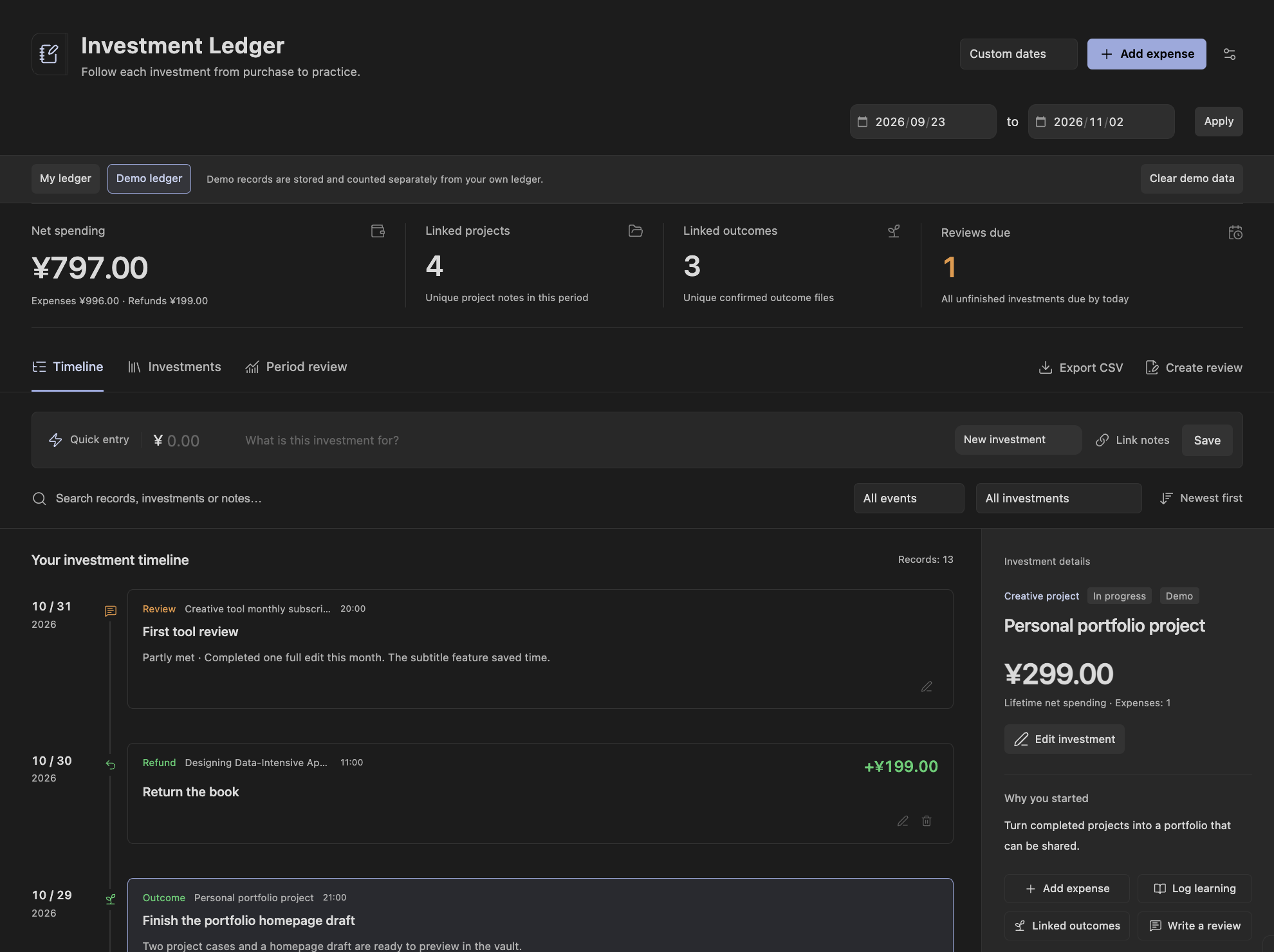
Get started in Obsidian on desktop
- Download and unzip the installation ZIP.
- Copy its
learning-investment-ledgerfolder into.obsidian/plugins/in your vault. - Check that the plugin folder directly contains
main.js,manifest.jsonandstyles.css, then reload Obsidian. - Enable the ledger in Settings → Community plugins. Open it from the ribbon and load the optional demo to try the workflow.
If Restricted Mode is enabled, allow community plugins first. To update, replace the three runtime files; ledger records are stored separately in your vault.
Try one complete workflow
Follow this sample workflow, or substitute your own course, project or decision.
Create a course investment
Try a sample “Photography basics” course: record a CNY 300 expense and what you hope to learn.
Link notes and outcomes
After a practice session, link the course note. When you have made something, explicitly record it as an outcome.
Set a review and reflect
Set a review date, then inspect spending and outcomes in the period review. Export CSV or a Markdown review when useful.
Just exploring? Load the optional demo from the ledger sidebar. Demo records are stored separately.
Keep spending, practice and reflection together
Start with a course or tool purchase, then record how you used it, what you made and whether you want to keep investing in it.
Record each investment
Organize courses, books, subscriptions and creative projects. Add expenses or full and partial refunds, then revisit them through the timeline and filters.
Link notes and outcomes
Log practice and link notes, project files, images and web pages. You explicitly confirm outcomes; opening a note or spending time in it does not count as one.
Review and take your records with you
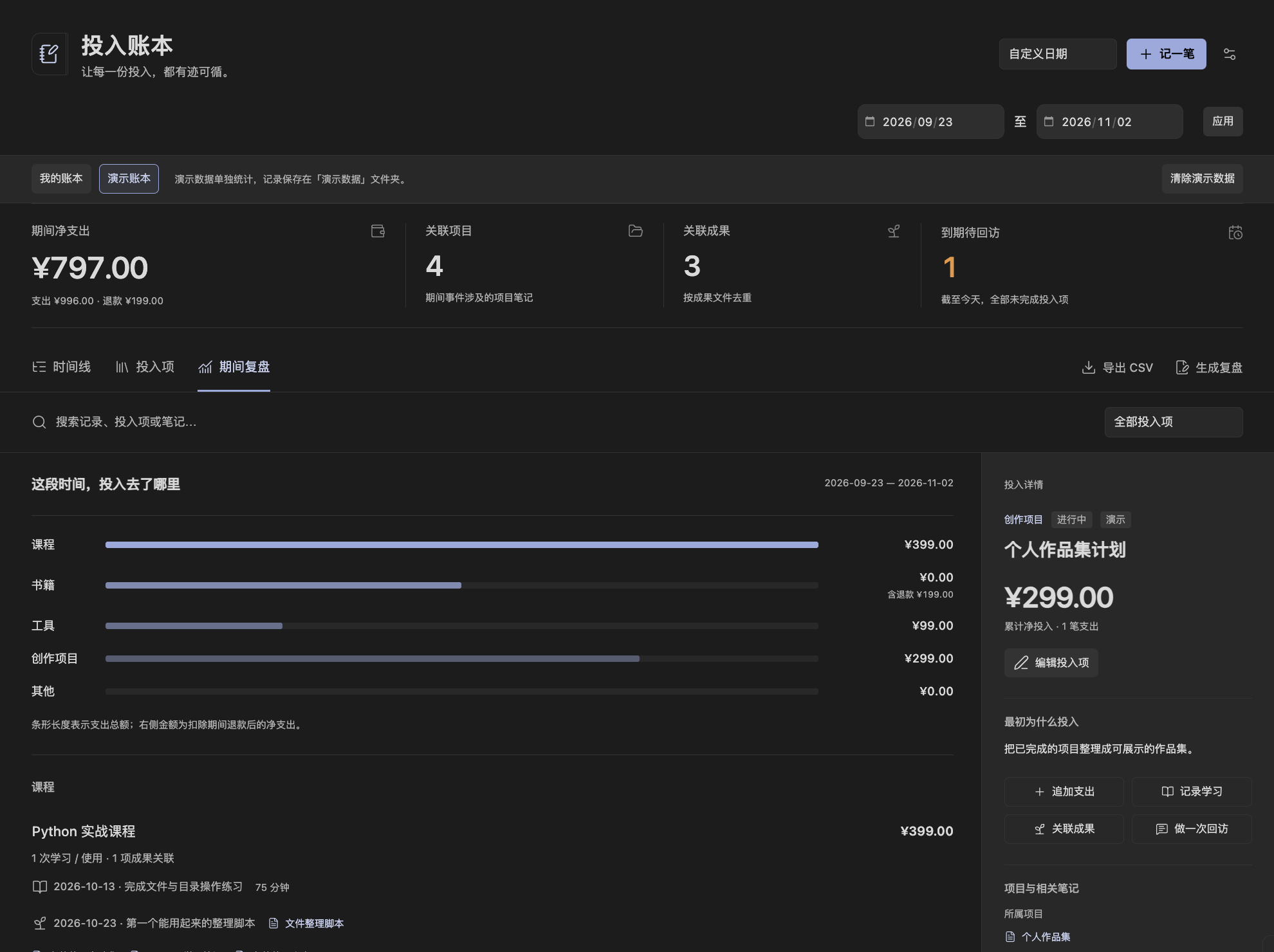
Set a review date and compare actual use with your expectations. Summarize spending over a period, export CSV transactions or create a Markdown review.
A closer look at the ledger
These screenshots come from the project repository and use separate demo data. Open an image in a new tab to inspect it at full size.
Review spending and outcomes by period
Your records live in your vault
Records are readable Markdown files, available even after uninstalling the plugin. The plugin makes no network or telemetry requests. Web links open only when clicked; file syncing follows your vault settings.
Read about the data format · MIT license
What this preview supports
Supports Obsidian 1.8.7+ on desktop, English and Simplified Chinese, with CNY as the only currency. Mobile support, bill import, OCR, multiple currencies and automatic time tracking are outside this release.
Share reproducible issues, expected results and version details in the repository.
Report an issueHelp while you try it
Can I use it on mobile?
This release supports Obsidian 1.8.7+ on desktop only. You can read this site on a phone; install and use the plugin on a computer.
Why does the plugin not appear after extracting it?
Check for an extra nested folder: main.js, manifest.json and styles.css must sit directly inside the plugin folder. Reload Obsidian and enable it in Community plugins.
What happens to my records when I update or uninstall?
Updates replace the three runtime files; ledger data lives separately in the vault. Markdown records remain readable after uninstalling, and exports provide another copy.
Do these plugins exchange data automatically?
The three plugins are installed separately and keep their own records: investments and outcomes, project next steps, and decisions with reviews. They can link to the same note, but do not automatically exchange data.
Reviewed and updated: November 4, 2026