Project Resume
Leave a next step before pausing. Return to your project and open its related files in Obsidian, with progress, blockers and checkpoint history close at hand.
Project Resume · 0.1.6 public beta
Manual installation · Obsidian 1.8.7+ desktop · English / 简体中文
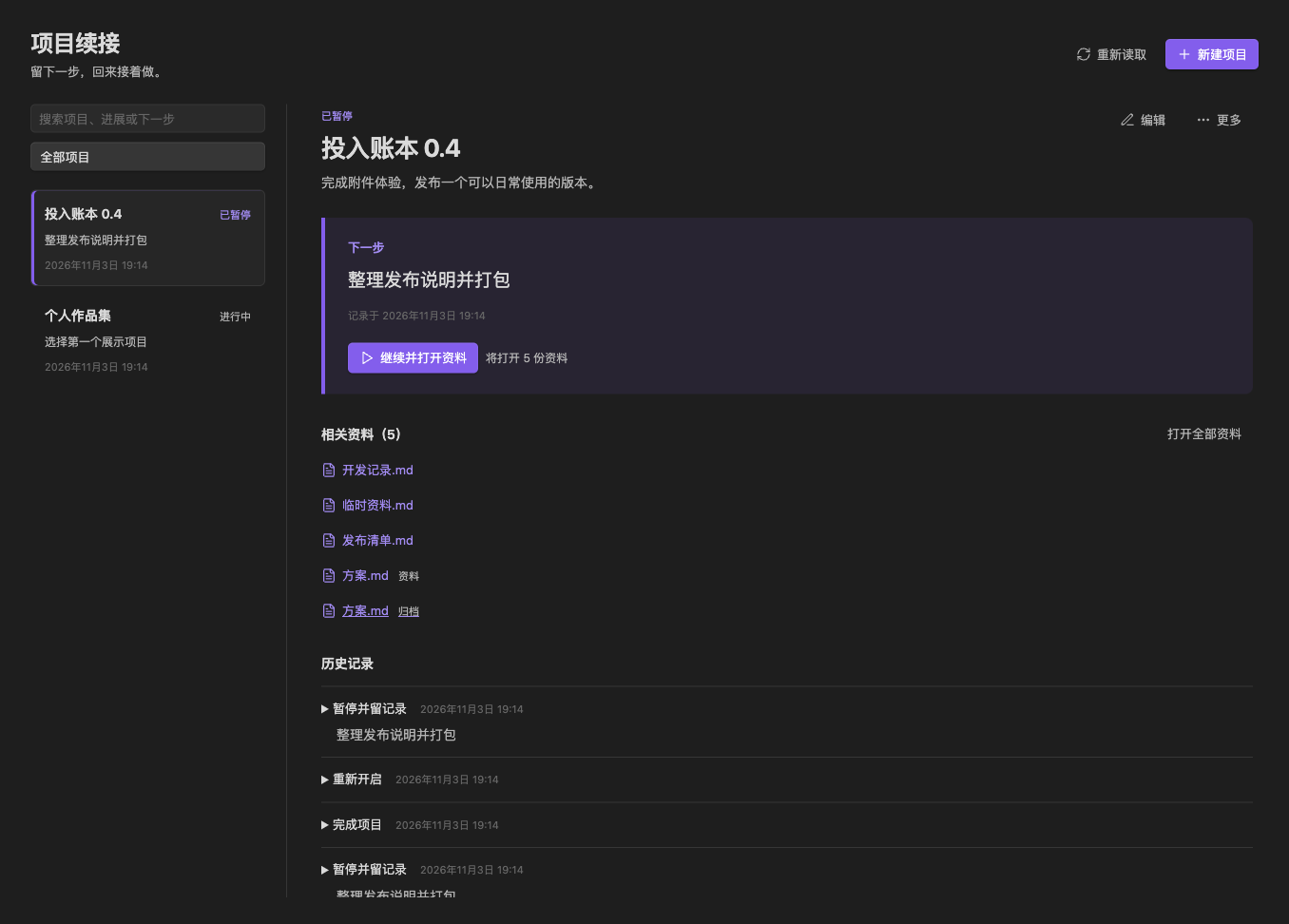
Get started in Obsidian on desktop
- Download and extract the installation ZIP.
- Copy its
project-resumefolder into your vault’s.obsidian/plugins/. - Check that the folder directly contains
main.js,manifest.jsonandstyles.css, then reload Obsidian. - Enable Project Resume in Settings → Community plugins. Open it with the ribbon bookmark icon or the Open Project Resume command.
This beta is installed manually and is not yet listed in the Obsidian community plugin directory. Allow community plugins if Restricted Mode is enabled.
Try one complete workflow
Follow this sample workflow, or substitute your own course, project or decision.
Create a concrete project
Create a sample “Portfolio” project with the goal “Finish one project write-up” and link a draft or source note.
Leave a next step
Pause with “Add installation steps and two screenshots” as the next step. Add progress or blockers if needed.
Return to the project and its files
Choose “Resume & open files” and follow the saved next step. Expand history to revisit the checkpoint.
You will have a pause and resume record; related files remain the original files in your vault.
Know where to pick up again
For writing, study and development projects you return to over time. Keep the next step alongside the files you will need.
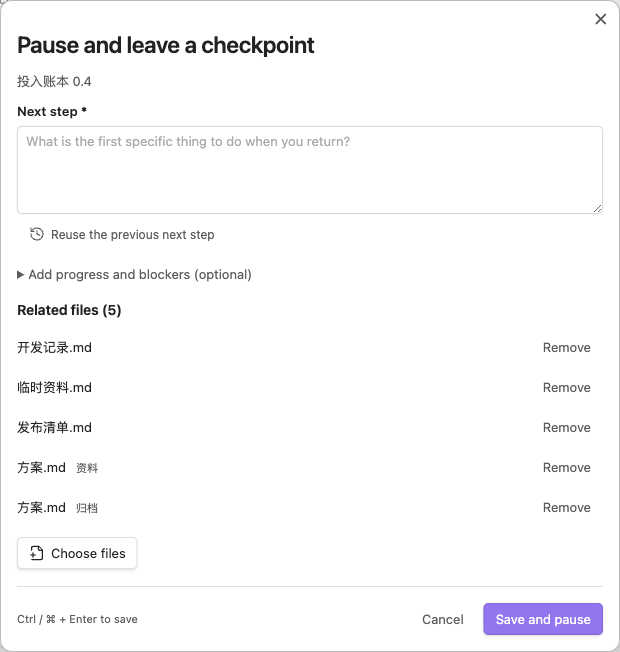
Leave a next step
Pause with just a next step. Add progress or blockers when useful, reuse the previous next step, and save with Ctrl / Cmd + Enter.
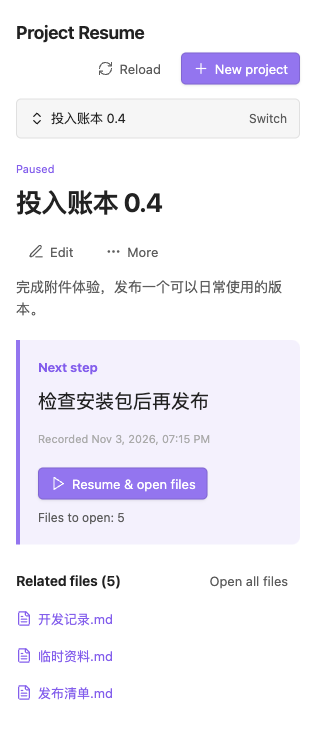
Resume with your files
Open linked files when you resume, reusing existing document tabs. Missing files are reported individually so other files can still open.
Keep the context
Review checkpoints and their linked files, or search projects and history. Reloading restores the selected project, filters, expanded history and reading position.
From pausing to picking up again
These original screenshots from the repository use demo projects. Open an image to inspect it at full size.
Pause with just a next step
Resume in a narrow desktop window
Projects and history stay local
The plugin needs no account, network connection or AI service. Projects and full history are Markdown files in the vault’s 项目续接 folder, readable after uninstalling. File syncing follows your vault settings.
Edit structured records through the plugin forms. Free-form notes below the designated marker are preserved when saving; the text above it is generated by the plugin.
MIT license · Data and recovery guide
What this beta covers
Supports Obsidian 1.8.7+ on desktop, English and Chinese, and light and dark themes. Narrow layouts are for the desktop workspace. Mobile, other desktop operating systems and multi-device sync conflicts have not been specifically tested.
This release does not offer individual history deletion or a configurable data folder. File moves made while the plugin is disabled are not tracked retroactively.
Report an issueHelp while you try it
Can I use it on mobile?
This release supports Obsidian 1.8.7+ on desktop only. You can read this site on a phone; install and use the plugin on a computer.
Why does the plugin not appear after extracting it?
Check for an extra nested folder: main.js, manifest.json and styles.css must sit directly inside the plugin folder. Reload Obsidian and enable it in Community plugins.
What happens to my records when I update or uninstall?
Updating from 0.1.0–0.1.5 to 0.1.6 needs no migration. Projects and history remain readable in the vault’s 项目续接 folder after uninstalling.
Do these plugins exchange data automatically?
The three plugins are installed separately and keep their own records: investments and outcomes, project next steps, and decisions with reviews. They can link to the same note, but do not automatically exchange data.
Reviewed and updated: November 4, 2026